Using the inspect tool on Adobe Content Authenticity (Beta)
The Inspect tool on Adobe Content Authenticity (Beta) (often referred to as "ACA Inspect" or simply "Inspect") is a C2PA conforming validator product that can display and apply Content Credentials for various asset types.
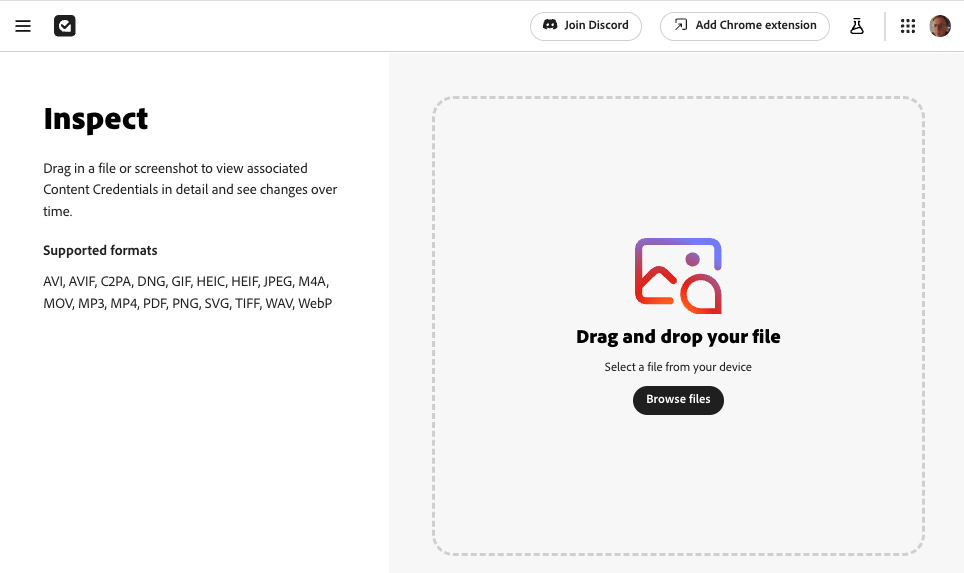
For more information, see Inspect Content Credentials on Adobe HelpX.
How to use Inspect
You can use Inspect to view Content Credentials for the following asset file types:
- Image: AVIF, DNG, GIF, HEIC, HEIF, JPEG, JXL, PNG, SVG, TIFF, and WebP.
- Video and audio: AVI, M4A, MOV, MP3, MP4, and WAV.
- Document: PDF.
When you first load the site and no asset is displayed on the page, Inspect shows the complete current list of supported file types.
You can use Inspect in two ways:
- Upload an asset file from your local computer.
- Use an asset URL.
Uploading an asset
Click Select a file from your device then use the native picker or drag and drop a file to upload it and display information from the associated Content Credentials (if any) such as the author, the tools used to create the asset, and so on.
Using an asset URL
You can also display Content Credentials for an asset with a publicly-visible URL by using a URL with the following format:
https://inspect.cr?source=<ASSET_URL>
where <ASSET_URL> is the URL of the asset.
For example: https://inspect.cr?source=https://contentauth.github.io/example-assets/images/car-es-Ps-Cr.jpg
To use Inspect on an asset URL, the URL must not require any authentication and the hosting server must allow cross-origin resource sharing (CORS) in the Access-Control-Allow-Origin HTTP response header.
Example assets
The example-assets repository contains some sample assets that demonstrate Content Credentials, including links to view the corresponding manifest reports generated by C2PA Tool and to view the Content Credentials using Inspect.
Information displayed
Once you've uploaded an asset or entered an asset URL, if the asset:
- Does not have an associated manifest store, Inspect displays the message No Content Credential.
- Does have an associated manifest store, Inspect displays information from it in the three vertical panels, for example as shown below.
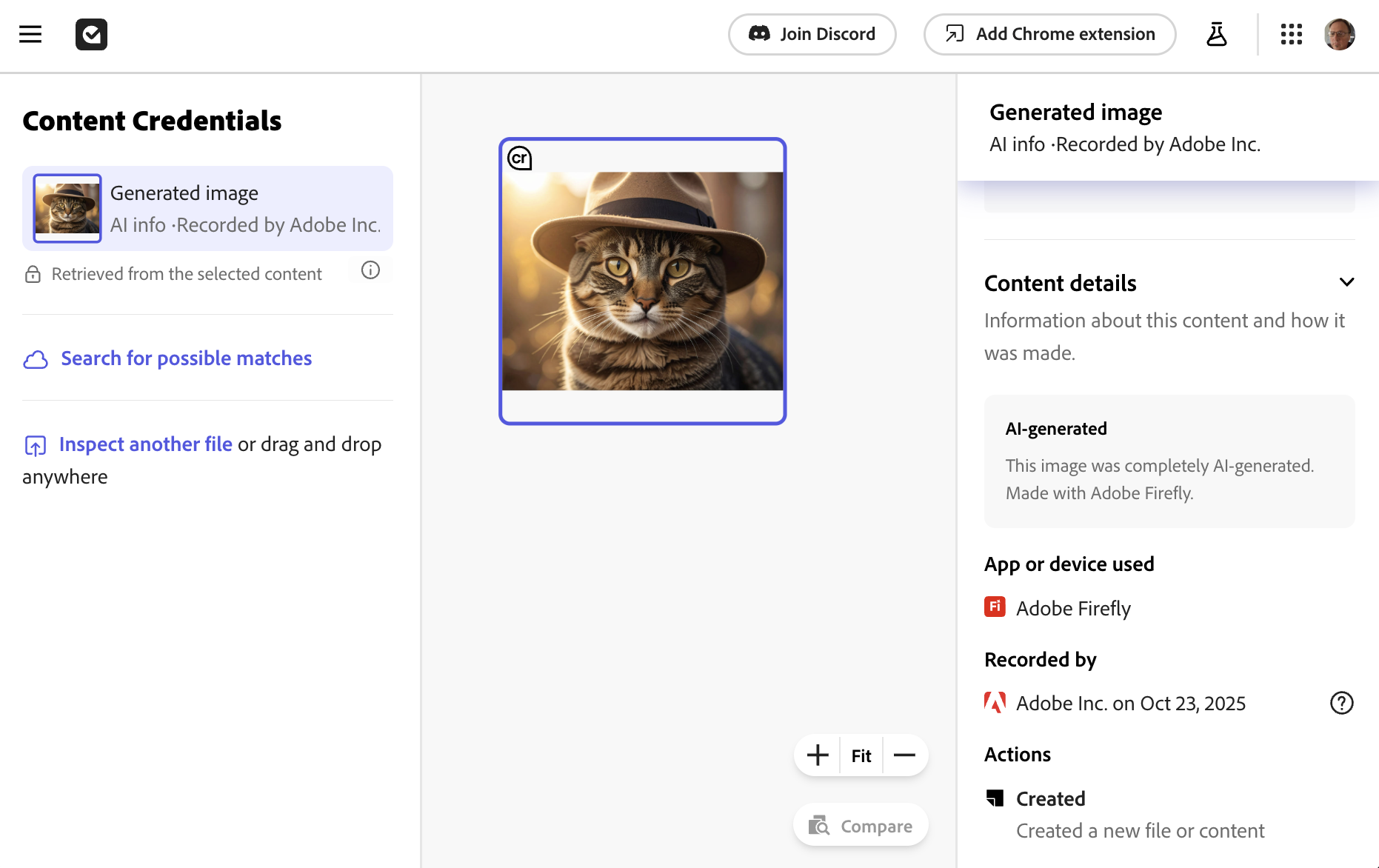
Left panel ↑ | Center panel ↑ | Right panel ↑ |
|---|---|---|
This section shows a thumbnail image and the asset name from the Also shows who signed the Content Credentials ("Recorded by"). Adobe products can save manifest stores in the Adobe Content Credentials Cloud. Click Search for possible matches to search there for content similar to the asset's ingredients. | Shows all the asset's ingredients in a tree-like layout.
Zoom in and out using the mouse wheel or trackpad and pan by dragging. NOTE: The example above shows only one ingredient. | Shows information from the asset's manifest store, as described below: |
Title and signing information
The top of the right panel displays a thumbnail of the image along with the same title and signing information as shown in the left panel.
If the Content Credential was signed by a certificate that is NOT on the C2PA trust list, such as one of the SDK's test certificates, then Inspect displays "Unrecognized" at the top of this section with this notice:
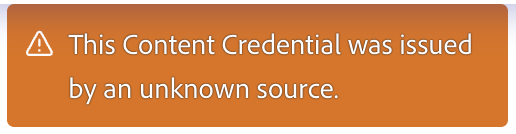
However, if the Content Credential was signed by a certificate on the C2PA trust list , then this section displays the name of the issuer of the claim signature from the signature_info.issuer property in the active manifest, as shown in the example snippet below.
This section shows the organization name only if the signing certificate includes the "O" or Organization Name attribute (OID value 2.5.4.10) in the certificate's distinguished name information.
For signers on the C2PA trust list, this section also displays the time of the claim signature from the signature_info.time property in the active manifest, as shown in the example snippet below. The date is converted from UTC to the local time zone.
"signature_info": {
        "alg": "Ps256",
        "issuer": "Adobe Inc.",
        "common_name": "Adobe C2PA",
        "cert_serial_number": "419323736054358557205556576293173262079519360989",
        "time": "2025-10-23T19:22:19+00:00"
},
If the issuer string is too long, then the date might be truncated or not shown at all.
Contributor details
For assets edited and signed with Adobe tools, if the creator has configured connected social media accounts such as Instagram, LinkedIn, and Behance, then this section displays that information with links to the creator's profile on the social media platform.
Content details
The Content details section displays information about the asset, divided into the following subsections:
Additionally, if the image was created with a generative AI tool, an AI-generated note is displayed at the top of the section.
App or device used
The value shown for App or device used is derived from the claim_generator and claim_generator_info properties in the active manifest.
Recorded by
The organization, device, or individual that signed the Content Credentials, based on the signature_info field in the manifest, for example:
"signature_info": {
        "alg": "Ps256",
        "issuer": "Adobe Inc.",
        "common_name": "Adobe C2PA",
        "cert_serial_number": "419323736054358557205556576293173262079519360989",
        "time": "2025-10-23T19:22:19+00:00"
},
Actions
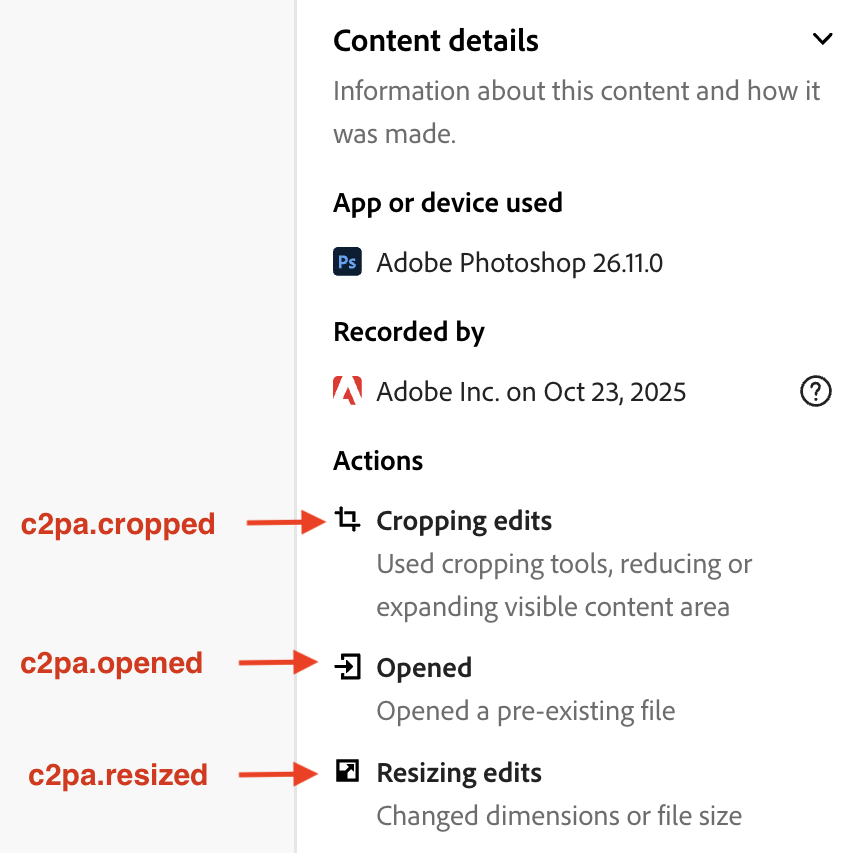
The Actions subsection lists actions in the active manifest, for example, as shown at right.
The corresponding actions array in the asset's manifest is shown below.
Show manifest code
{
  "label": "c2pa.actions.v2",
  "data": {
    "actions": [
      {
        "action": "c2pa.opened",
        "parameters": {
          "description": "Opened a pre-existing file",
          "com.adobe.tool": "open",
          "com.adobe.icon": "https://cai-assertions.adobe.com/icons/import-dark.svg",
          "instanceId": "xmp:iid:73f1d577-2d17-46ec-908a-09f2380df77c"
        }
      },
      {
        "action": "c2pa.cropped",
        "parameters": {
          "com.adobe.tool": "crop",
          "com.adobe.icon": "https://cai-assertions.adobe.com/icons/crop-dark.svg",
          "description": "Used cropping tools, reducing or expanding visible content area"
        }
      },
      {
        "action": "c2pa.resized",
        "parameters": {
          "com.adobe.tool": "image_size",
          "description": "Changed dimensions or file size",
          "com.adobe.icon": "https://cai-assertions.adobe.com/icons/resize-dark.svg"
        }
      }
    ],
    ...
  }
}
Ingredients
The Ingredients section shows the resources used to create the asset, derived from the ingredients array in the active manifest. A thumbnail image is shown for each ingredient, if applicable. If an ingredient itself had Content Credentials, the "cr" icon is shown next to the thumbnail.